

How Photoshop Thumbnail Makers Help Boost Video Clicks
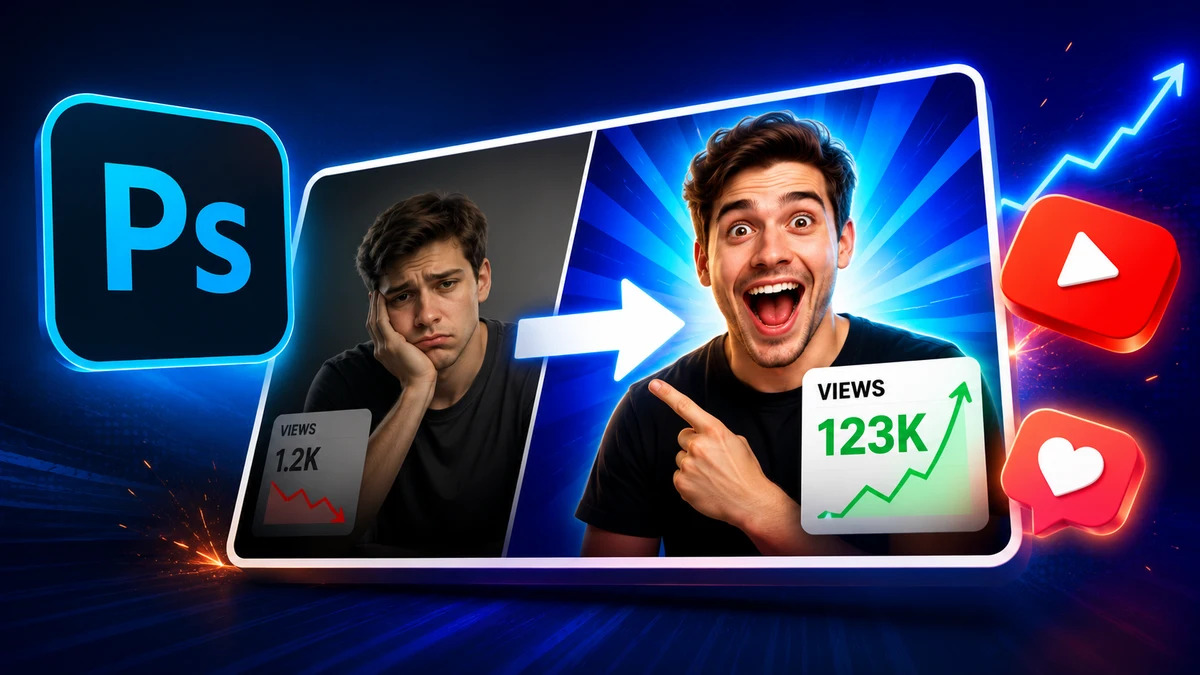
Ever wonder why some video previews stop your scroll dead in its tracks? Picture this: you’re scrolling through an endless feed, maybe on YouTube or Instagram, and suddenly a bold thumbnail pops out – bright colors, big text, maybe an expressive face.
You click because it promised something irresistible. That’s the magic of a well-designed thumbnail. In our media-saturated world, your video’s thumbnail is like its movie poster or book cover – it has to hook the viewer instantly. Surprisingly, even small changes in thumbnail design can move the needle on click-through rates (CTR) dramatically. According to Adobe, “a striking thumbnail is a powerful tool for making your video stand out”.
Think of thumbnails as mini-ads; they grab attention faster than a title or description. In fact, YouTube analytics define CTR as how often people click after seeing a thumbnail – it literally measures how “eye-catching” your video packaging is. So if you want more eyes on your video, mastering thumbnails is non-negotiable.
Color matters more than you think. Just like in top magazines or billboards, high-contrast hues and clean layouts make thumbnails pop. A pop-culture example: streaming giant Netflix tests multiple cover images to maximize clicks. Your video thumbnail should do the same: catch the eye with bold, branded visuals, then compel with a hint of the story.
Many creators find that consistent, Photoshop-crafted designs build a recognizability that translates into loyal viewers. Here’s a pro tip: viewers spend about twice as long looking at a thumbnail than a title. That means if your thumbnail is strong and clear, you’ve won half the battle.
Why Click-Worthy Thumbnails Matter
Think of a thumbnail as your video’s handshake with the audience. If it’s weak or generic, viewers scroll right past. But a thumb-stopping image with a clear message boosts the chance that people will hit “Play.” Research by vidIQ highlights that good thumbnails can double your click-through rate on the same title and content. In practical terms, a strong thumbnail might raise CTR from 3% to 6% – meaning twice as many viewers – with no other changes.
Who needs data when case studies say it outright? One YouTube marketing case study saw a 30% lift in CTR by simply updating old thumbnails and titles. In another split-test, changing the thumbnail tone from positive to more urgent or even negative (like “Why Your Life is at Risk!” vs. “Live a Safer Life”) netted a 37% higher click rate. (Yes, even small wording tweaks can have a big impact.)
Another insight: thumbnails featuring human faces and expressions consistently outperform those without. It’s like eye contact – our brains are drawn to faces, especially when they show emotion.
Bottom line: thumbnails are prime real estate for grabbing eyeballs. YouTube’s own Help docs put it bluntly: CTR tells you how “eye-catching” your video’s packaging is. Eye-catching is the keyword. In 2026, seasoned YouTube strategists agree: if your thumbnails are off-brand, blurry, or cluttered, your CTR suffers.
But nail that visual hook, and your video gets promoted by the algorithm, leading to more views, subscribers, and even revenue. In fact, half of all YouTube videos achieve a 2–10% CTR – so hitting the higher end of that bracket often means your thumbnail game is strong.
Photoshop: The Secret Weapon for Eye-Catching Thumbnails
So how do you consistently create those pop-and-click thumbnails? Enter Photoshop. It’s the Swiss Army knife of image design, giving you near-total creative control. Unlike one-size-fits-all web tools, Photoshop lets you layer images, mask out backgrounds, add shadows and glowing edges, and fine-tune every pixel. Think of it: you’re not just editing a photo, you’re crafting a tiny billboard.
With Photoshop’s advanced features, you can extract subjects from video stills, paint on dramatic lighting effects, and overlay crisp text. Seasonal memes? Slap on a thematic icon. Understated meme humor? Drop in a relevant emoji or brush stroke.
And Photoshop’s non-destructive layers let you experiment without fear: tweak one element and compare. No wonder many content creators and digital marketers swear by it. As one designer quips, “Photoshop lets me channel my inner artist – if I can dream it, I can put it on a thumbnail.”
If the idea of Photoshop feels daunting, don’t fret. There are pre-built templates and actions specifically for YouTube thumbnails, and numerous online tutorials. Even Photoshop’s little-known Smart Objects feature is gold: double-click, swap in your new image, and voila – text and effects scale perfectly.
Many Photoshop-savvy creators build a personal branding kit (consistent fonts, colors, logos) so each thumbnail feels like part of a family. This consistency helps loyal fans immediately recognize your videos in a sea of content.
The learning curve pays off. Instead of wrestling with blocky free apps, Photoshop veterans can produce thumbnails that look immediately professional. That can make viewers subconsciously trust the video more.
Consider it psychological packaging: high production value suggests high-quality content inside. If you were browsing coffee makers, would you trust the one with the crisp, well-lit photo more? Same deal for videos.
By now you might be thinking, “Maybe I need pro help!” (Fair enough.) Luckily, there are services—scratch that, Best Photoshop Thumbnail Makers—out there who specialize in this craft. These skilled designers use Photoshop to its fullest and live for this stuff.
They study trends, grab compelling frames, and even apply new AI tools to kick-start creativity. Whether you DIY or outsource, embracing Photoshop-based design puts you in control of your video’s first impression.
Comparing Thumbnail Creation Tools
There’s no shortage of tools vying to be your thumbnail helper. Let’s compare some top contenders in a quick table:
|
Tool |
Price (USD) |
Key Features |
Pros |
Cons |
|---|---|---|---|---|
|
Adobe Photoshop (CC) |
~$20/mo (single app) |
Full editing toolkit; layers; smart objects; AI filters |
Industry-standard, extreme flexibility |
Steeper learning curve; subscription cost |
|
Adobe Express |
Free (basic), $9.99/mo Premium |
Ready-made thumbnail templates; AI-assisted edits; brand kit |
Easy to start; thousands of templates |
Less customization than full Photoshop |
|
Canva |
Free (basic), $12.99/mo Pro |
Drag-drop design; social media templates; stock assets |
Very user-friendly; huge asset library |
Limited advanced editing; watermark on free assets |
|
Snappa |
Free (5 designs/mo), $10/mo Pro |
Quick design for videos; built-in templates and fonts |
Simple UI; good for beginners |
Smaller template library; fewer features |
|
Pixlr |
Free (basic), ~$5/mo Premium |
Browser-based; layer editing; effects |
No install needed; fast for quick edits |
Interface can lag; ads on free version |
Table 1: Popular tools for thumbnail creation, compared by features, pricing, and strengths/weaknesses.
In short, Photoshop reigns supreme for ultimate control – layering gradients, handcrafting custom icons, etc. But it’s a commitment. For quick templates, tools like Adobe Express or Canva are nice alternatives (especially for non-designers). Adobe Express even auto-generates designs via AI.
Yet, those easy tools often sacrifice nuance. A Canva thumbnail might look good, but a Photoshop-crafted one can be exceptional: think custom photo-bashes or subtle drop-shadows that free tools can’t replicate.
One more note: if you plan to A/B test thumbnails (spoiler: you should), Photoshop can speed that up. Save your layers and simply swap out different text or images, then export multiple versions. Some thumbnail experts use Photoshop’s timeline or export batch actions to churn out 3–4 variants in minutes. With other tools, you might have to rebuild slides from scratch each time. So for creators serious about boosting their click-through by tinkering, Photoshop’s workflow is a winner.
Thumbnail Design Best Practices
Whether you’re using Photoshop or a simpler app, certain design principles always apply. Treat your thumbnail like a mini-poster or a billboard: prioritize clarity, contrast, and curiosity. Here are some battle-tested tips:
- Bold Text, Brief Words: Use large, readable fonts. Ideally just 3–4 words max. It needs to be legible on a small phone screen.
- High-Contrast Colors: Bright text on dark background (or vice versa). Saturated colors stand out in feeds.
- One Focal Point: Center the key element – usually a face or striking object. Ask “What will pop first?” If there are multiple busy elements, readers get overwhelmed.
- Expressive Faces & Emotions: Thumbnail faces should show clear emotion (surprise, joy, shock). As noted above, humans connect with eyes and expression.
- Consistent Branding: A small channel logo or recurring color scheme builds familiarity. Over time, viewers spot your style and think “Ah, I know that creator!”. Researchers have found consistent style can boost clicks by ~38%.
- Intriguing Concept: Create a visual puzzle or tease a story. For example, if your video is about saving money, show a person excitedly throwing cash or a cartoon piggy bank bursting. The thumbnail should hint at the answer to “Why should I click this?” without giving it all away.
- Quality Imagery: Start with sharp, high-res images (1280×720px recommended). A blurry or stretched photo screams “amateur” and lowers CTR. Remember that YouTube will occasionally auto-generate thumbnails – if you’ve got a crisp, custom image from Photoshop, it instantly looks more pro.
Use bullet points or a short sentence on an image sparingly (for example, “Game-changer for Creatives!”). A study by Pixflow found that adding simple visual cues – arrows, highlight circles, small emojis – can nudge the eye to a focal word or object. In Photoshop, it’s easy to draw an arrow or outline an object. The goal is not clutter, but guiding: a red arrow might point to the big text “2026!” or frame your smiling face.
Also consider mobile preview: shrink your thumbnail image to see how it reads at small size (about the width of your thumb). If it looks busy, simplify and redo.
Case Studies and Results: Thumbnails in Action
Let’s look at real-world numbers. The VireoVideo marketing agency ran 326 split tests on YouTube thumbnails and uncovered some gems. One client, Eckhart Tolle, tested two variants: the original peaceful design vs. one with a darker tone and bold text. The darker, more urgent variant smashed the original by 37% CTR. Another channel reworked past video thumbnails and saw a 30% jump in clicks on average.
What did the successful thumbnails have in common? Strong visual hooks. Vireo found that rotating human faces and ensuring text “pops” led to big CTR bumps. It echoes a common YouTube tip: humans eat emotions for breakfast. (Ever scroll past a thumbnail of a yawning kitten? No? Faces win.)
Outside of tests, industry experts consistently report that thumbnails reign supreme in the YouTube algorithm. VidIQ notes that thumbnails essentially act as mini-ads, and a single better design can turbocharge growth. Other analysts (like Switcher Studio) confirm that YouTube CTR can easily improve from 3% to 6% with the right thumbnail moves. In short, data from multiple sources agree: better thumbnails mean more clicks.
Of course, thumbnail power has limits. The video’s topic, audience, and title also matter. But given the investment needed for each video, optimizing the thumbnail is one of the highest leverage moves.
It’s part science, part art: use what we know from psychology (contrast, faces, curiosity) and what we learn from data (split-tests, analytics). Tools like Photoshop make these experiments smoother: you can rapidly mock up a dozen thumbnail variants, test them with TubeBuddy or YouTube’s built-in tests, and hone in on what clicks best.
For example, one common experiment is A/B testing bright backgrounds vs. dark backgrounds, or curious-fragmented thumbnails vs. straightforward ones. (Pro tip: TubeBuddy’s thumbnail split test is a must-try if you want data.) And remember, even the platform suggests it: YouTube’s own Help Center emphasizes that CTR is the difference between “loyal fans” and a “broader audience,” illustrating how a high CTR on a small channel can grow your reach dramatically.
According to official YouTube guidelines, you should pay attention to thumbnail size and format to encourage clicks, since good CTR is tied to watch-time and algorithm promotion. An external analysis by Focus Digital found search impressions often yield CTR ~12.5%, while the home feed is lower (around 3-4%).
This means if your thumbnail is tailored well for search (clear title text, niche cues), you might grab that 12% cluster of viewers actively looking. Point is: understanding CTR context is key, and tailoring thumbnails for each audience segment is worth considering (for example, super bold for casual browse, more informative for search).
Let’s not forget mobile. Over 70% of YouTube watch time comes from mobile devices, where thumbnails are tiny. That’s why champions of thumbnail design often say: test on your phone early. If you have to squint, tweak it. In Photoshop, you can zoom out to simulate that. Or simply preview as a small image.
In a nutshell, these case studies and data all circle back to one truth: the thumbnail is one of the most potent levers for growth on video platforms. Even YouTube says as much. Want those extra 5% CTR and beyond? Crafting better thumbnails—often through Photoshop’s advanced tools—is a proven strategy.
Conclusion
At the end of the day, your thumbnail is the bridge between your content and the viewer. It’s the visual handshake, the door-to-door salesman, the first impression. Skip the basics and you might as well hide behind a generic label. But invest in a Photoshop-powered thumbnail – one that pops, tells a snippet of the story, and mirrors your video’s vibe – and you build undeniable momentum.
We’ve seen why eye-catching thumbnails lift CTR, how Photoshop’s flexibility helps craft them, and what top performers do differently. With tools, templates, and creativity in your corner, the barrier between “who’s that?” and “I have to click that!” gets a lot thinner.
So what’s next? Take these insights and run with them. Maybe give Photoshop a whirl, or hire one of those [Best Photoshop Thumbnail Makers] to give your channel a facelift (no shame in that). Experiment with designs, measure the CTR in YouTube Studio, and double down on what works. Remember – those few seconds someone spends on your thumbnail decide whether they become a viewer. Make them count.
Ready to see the difference? Craft your next thumbnail with intention. Tweak those colors, test those words, and watch those clicks climb. Because in the world of online video, the thumbnail is king, and Photoshop is one of its sharpest crowns.
Frequently Asked Questions (FAQs)
Thumbnails are the first visual hook viewers see; they set expectations. A well-designed thumbnail grabs attention, stands out in feeds, and directly boosts CTR. Studies show clear, compelling thumbnails can improve CTR by double-digit percentages.
Absolutely! Many creators start with Photoshop thumbnail templates or PSD files. Just swap in your image and text. Templates save time (often under 15 minutes per thumbnail) and ensure consistent styling. Platforms like Pixflow offer pre-made Photoshop templates specifically for YouTube thumbnails.
Keep it simple and bold. Use readable fonts, contrasting colors, and focus on one idea. Show emotion or intrigue with faces or a suspenseful visual. Add a hint of context (icons, minimal text). Always match the thumbnail to your brand’s style for recognition.
Check your YouTube Analytics. If CTR is low (below 3%), consider redesigning. You can also A/B test thumbnails: upload one design, run the video, then switch to another and compare CTR. Track changes: even a 1–2% CTR gain can significantly boost views over time.
On average, a 3–4% CTR is common, while 5–7% is strong performance. However, benchmarks vary by niche and traffic source. For example, gaming channels often see 6–9%, whereas education might average ~4-5%. Always measure against your channel’s past performance.
.png)



Comments
Update Comment